SharePoint (2003 thru Online): OneDrive
Showing posts with label OneDrive. Show all posts

Tuesday, October 15, 2019

Sharing Reports for OneDrive

When you run the sharing report on file and folder sharing in OneDrive, the CSV file is saved to a location of your choosing in the OneDrive. 
NOTE: If you don't want site members to see the report, consider creating a folder with different permissions where only site owners can access the report.

Steps to Run the Sharing report.

Open the site where you want to run the report.
On the Settings menu, click OneDrive settings.
Under More Settings, Manage access section, click Run sharing report.

Create a New > Folder (here we created MyShareReport Folder), select the Folder and click Save, and then click Run sharing report again.

The report may take some time to run depending on the size of the site.
When the report is finished running you will receive an email with a link to the report.
Go to MyShareReport Folder, inside, you will see the saved sharing report in CSV format.

CSV format

For items shared with direct access, the report contains one row for each user / item combination. SharePoint groups are shown in the report, but not individual users inside them.

For items shared with a link, the report contains a row for each signed-in user who has used the link or has been sent the link through the sharing dialog box. Links emailed directly that haven't been clicked, and Anyone links are not included in the report.
The report contains the following columns:
Resource Path - The relative URL of the item
Item Type - The type of item (web, folder, file, etc.)
Permission - The permission level the user has on this item
User Name - Friendly name of the user or group that has access to this item. If this is a sharing link, the user name is SharingLink
User E-mail - The email address of the user who has access to this item. This is blank for SharePoint groups.
User or Group Type - The type of user or group: Member (internal), Guest (external), SharePoint group, Security group or Office 365 group. (Note that Member refers to a member in the directory, not a member of the site.)
Link ID - The GUID of the sharing link if user name is Sharing Link
Link Type - The type of link (Anonymous, Company, Specific People) if user name is Sharing Link
AccessViaLinkID - The Link ID used to access the item if a user's permission to an item is via a link.

Monday, July 29, 2019

OneDrive Limitations


  • Individual files cannot exceed 2 gigabytes (GB).
  • File upload size up to 15 GB.
  • Up to 20,000 individual files or folders can be synced with the OneDrive client.
  • The file path (site name + site location + folders + filename) must contain fewer than 400 characters for files synced with the OneDrive client (If you exceed that limit, you'll receive an error message).
  • File names beginning with a tilde (~) & (~$) are not supported.
  • These names aren't allowed for files or folders: .lock, CON, PRN, AUX, NUL, COM0 - COM9, LPT0 - LPT9, _vti_, desktop.ini ("forms" isn't supported when the folder is at the root level for a library.)
  • The following characters are not supported in file names: \ / : * ? " < > | # %
  • You can't add a network or mapped drive as your OneDrive sync location. OneDrive doesn't support syncing using symbolic links or junction points. 
  • Thumbnails & PDF previews are not generated for files larger than 100 MB. 
OneDrive Storage space per user (based on License)


2 GB
Office 365 Enterprise F1

1 TB
Office 365 Business Essentials Office 365 Nonprofit Business Essentials
Office 365 Business Office 365 Nonprofit Business Premium
Office 365 Business Premium Office 365 Nonprofit E1
Office 365 ProPlus OneDrive for Business Plan 1
Office 365 Enterprise E1 SharePoint Online Plan 1
Office 365 Government G1

Beyond 1 TB, to unlimited
Office 365 Enterprise E3 Office 365 Nonprofit E3
Office 365 Enterprise E5 Office 365 Nonprofit E5
OneDrive for Business Plan 2 Microsoft 365 Enterprise E3
SharePoint Online Plan 2 Microsoft 365 Enterprise E5
Office 365 Enterprise E3 Microsoft 365 A3
Office 365 Enterprise E5 Microsoft 365 A5
Office 365 A1 Microsoft 365 US Government G3
Office 365 A3 Microsoft 365 US Government G5
Office 365 A5 Microsoft 365 E3 for nonprofit
Office 365 US Government G3 Microsoft 365 E5 for nonprofit
Office 365 US Government G5

1 TB per user for subscriptions with fewer than 5 users. For subscriptions with 5 or more users, Microsoft will initially provide 1 TB per user, which admins can increase to up to 5 TB per user. To request additional storage, admins must contact Microsoft support.

Tuesday, July 2, 2019

New Feature: OneDrive & SharePoint integration with Azure AD B2B (Preview)

MC183679, Stay Informed, Published On : June 28, 2019

OneDrive & SharePoint integration with Azure AD B2B is a new Office 365 feature in preview. We'll begin rolling this preview out soon.

This message is associated with Microsoft 365 Roadmap ID 33415.

How does this affect me?
This integration is disabled by default during preview and so this roll out will not affect you unless you choose to opt-in.

This preview integrates external sharing in SharePoint and OneDrive with Azure AD B2B. This includes external sharing of files, folders, list items, document libraries and sites.

With this integration turned on, when a user shares an item in SharePoint or OneDrive with an external user then a Guest account is immediately created for that external user (if one does not already exist). As a result, any sign-in or conditional access policies in place in your organization will take effect on those external users.

We'll be gradually rolling out the ability to opt-in to the preview starting in late June, and the roll out will be completed worldwide by the end of July.

What do I need to do to prepare for this change?
Because this integration is off by default, while in preview, there is nothing you need to do to prepare for this change. However, once it exits preview next year then you will not be able to turn it off. 


Advantages of Azure AD B2B
  • Invited external users are each given an account in the directory and are subject to Azure AD access policies such as multi-factor authentication.
  • Invitations to a SharePoint site use Azure AD B2B and no longer require users to have or create a Microsoft account.
  • If you have configured Google federation in Azure AD, federated users can now access SharePoint and OneDrive resources that you have shared with them.
  • SharePoint and OneDrive sharing is subject to the Azure AD organizational relationships settings, such as Members can invite and Guests can invite.
Opt in to the Azure AD passcode authentication preview
  • Sign in to the Azure portal as an Azure AD global administrator.
  • In the navigation pane, select Azure Active Directory.
  • Under Manage, select Organizational Relationships.
  • Select Settings.
  • Under Enable Email One-Time Passcode for guests (Preview), select Yes.
  • Click Save.


Opt in to the SharePoint and OneDrive integration with Azure AD B2B
Install the latest version of the SharePoint Online Services Module for Windows PowerShell (min version 8924.1200).

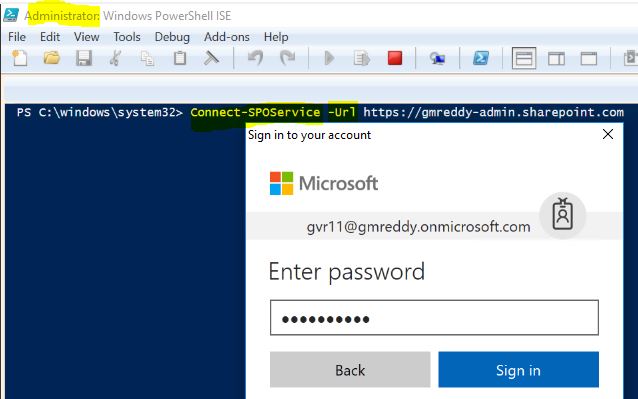
Connect to your tenant by using Connect-SPOService.
Run the following cmdlets:
Set-SPOTenant -EnableAzureADB2BIntegration $true 
Set-SPOTenant -SyncAadB2BManagementPolicy $true


Opting out of the preview
You can disable the preview by running 
Set-SPOTenant -EnableAzureADB2BIntegration $false

(You can also opt out of the Azure AD passcode authentication preview.) 
  • Sign in to the Azure portal as an Azure AD global administrator.
  • In the navigation pane, select Azure Active Directory.
  • Under Manage, select Organizational Relationships.
  • Select Settings.
  • Under Enable Email One-Time Passcode for guests (Preview), select No.
  • Click Save.

Content that was shared externally while the preview was enabled will need to be shared again with the specific external users.

Note that after preview, this feature will replace the ad-hoc external sharing experience used in OneDrive and SharePoint today for all tenants and you will not be able to opt out.

Monday, July 1, 2019

New Feature: 360-degree Image Viewer in SharePoint and OneDrive for Business

MC183957, Stay Informed, Published On : July 1, 2019

The 360-degree Image Viewer is a new Office 365 feature. We'll begin rolling this feature out soon.

This message is associated with Microsoft 365 Roadmap ID 49516.

How does this affect me?
With this feature in place, customers will be able to view 360-degree photos in an interactive, panoramic manner, directly within Sharepoint and OneDrive for Business, when the photo is clicked on for detailed viewing.

Any 360-degree photos uploaded after this feature goes live (basically ones marked with a projection type of "Equirectangular") will be detected as such.

Alternatively, users can manually tag their 360-degree photos to end with ".360.jpg" or ".360.jpeg" to force activation of the 360-degree viewer, for those particular photos.

Before the 360 viewer:


With the 360 viewer:
 
The roll out will be complete in early July.

Friday, June 21, 2019

OneDrive Quota options

1. Set default storage limit for all users.
2. Set specific storage limit for selected users.

1. Set default storage limit for all users.1TB is the default tenant-wide setting for a user’s OneDrive for Business storage quota. Following your Office 365 plan, find your eligibility max storage per user. To increase the quota tenant-wide for every user, go to OneDrive Admin Center. Enter Default storage in GB and click Save.

Set the default OneDrive storage using PowerShell

Set-SPOTenant -OneDriveStorageQuota 2097152

We updated the OneDriveStorageQuota to 2097152 (2 TB). Use Get-SPOTenant to verify the update.

2. Set specific storage limit for selected users.

First, check if a user has the default storage limit or a specific limit. Sign in to https://admin.microsoft.com as a global or SharePoint admin. (If you see a message that you don't have permission to access the page, you don't have Office 365 administrator permissions in your organization.)
[Note: If you have Office 365 Germany, sign in at https://portal.office.de. If you have Office 365 operated by 21Vianet (China), sign in at https://login.partner.microsoftonline.cn/. Then select the Admin tile to open the admin center.]

In the left pane, select Users >> Active users >> Select the user >> Select the OneDrive tab.Next to "Storage used," look at the max value. (For example, 0 MB of 1024 GB)


To use several different storage settings for individual users’ OneDrives instead of using a tenant-wide option, we can run the following from PowerShell (inserting the target user’s OneDrive location and specifying the desired quota in MB):


Note: To perform the steps below you will need to have the SharePoint Online Management Shell installed. If you have issues with SharePoint Online Management Shell, try to install SharePoint Online Client Components SDK

(Windows 10 is recommended OS for using SharePoint Online Management Shell. You might see more issues with Windows 7.)

1. Open PowerShell as Administrator
2. Connect to the service: Connect-SPOService -Url <https://yourdomain-admin.sharepoint.com>
3. Sign in with SharePoint administrator credentials


Set-SPOSite -Identity https://gurram-my.sharepoint.com/personal/tone_gurram_onmicrosoft_com -StorageQuota 5242880


NOTE: Based on your license, you can increase up to 5 TB only. You need to contact MSFT Support for more than 5 TB.

Use Get-SPOSite -Identity https://gurram-my.sharepoint.com/personal/tone_gurram_onmicrosoft_com to verify the update.


Wednesday, June 19, 2019

SharePoint Online - Permission Levels

Below is a complete list of the permission levels, what they do and who they are for:
Full Control: By default, this permission level is assigned to the Owners group. 
Contains all available SharePoint permissions. It can't be customized or deleted. 

Design: Create lists and document libraries, edit pages and apply themes, borders, and style sheets on the site.  


Edit: By default, this permission level is assigned to the Members group.

Add, edit, and delete lists; view, add, update, and delete list items and documents. 

Contribute: View, add, update, and delete list items and documents. 


Read: By default, this permission level is assigned to the Visitors group.

View pages and items in existing lists and document libraries and download documents. 

View Only: View pages, items, and documents. Any document that has a server-side file handler can be viewed in the browser but not downloaded. File types that do not have a server-side file handler (cannot be opened in the browser), such as video files, .pdf files, and .png files, can still be downloaded. 


Approve: Edit and approve pages, list items, and documents. By default, the Approvers group has this permission. 


Manage Hierarchy: Create sites and edit pages, list items, and documents. By default, this permission level is assigned to the Hierarchy Managers group. 


Restricted Read: View pages and documents, but not historical versions or user permissions. 


Restricted Interfaces for Translation: Can open lists and folders, and use remote interfaces.


Limited Access:  Enables a user or group to browse to a site page or library to access a specific content item when they do not have permissions to open or edit any other items in the site or library. This level is automatically assigned by SharePoint when you provide access to one specific item. You cannot assign Limited Access permissions directly to a user or group yourself. Instead, when you assign edit or open permissions to the single item, SharePoint automatically assigns Limited Access to other required locations, such as the site or library in which the single item is located. 


Lockdown mode

Limited-access user permission lockdown mode is a site collection feature that you can use to secure published sites. When lockdown mode is turned on, fine-grain permissions for the limited access permission level are reduced. The following table details the default permissions of the limited access permission level and the reduced permissions when the lockdown mode feature is turned on.


Site Settings >> Site Collection features

PermissionLimited access - defaultLimited access - lockdown mode
List permissions: View Application Pages 
Site permissions: Browse User Information 
Site permissions: Use Remote Interfaces 
Site permissions: Use Client Integration Features 
Site permissions: Open 

Lockdown mode is on by default for all publishing sites, including if a legacy publishing site template was applied to the site collection. Lockdown mode is the recommended configuration if greater security on your sites is a requirement.

If you disable the limited-access user permission lockdown mode site collection feature, users in the "limited access" permissions level (such as Anonymous Users) can gain access to certain areas of your site.

Tuesday, June 18, 2019

SPO - Document collaboration and co-authoring

Co-authoring is available for documents stored in OneDrive or SharePoint. 


The coauthoring feature of SharePoint Online allows multiple users to work on a document. This occurs in such a way that the changes made by one user do not interfere with the changes made by another. The ability to coauthor documents is enabled by default for documents stored in SharePoint Online.

Office 365 ProPlus provides coauthoring support for Word, PowerPoint, OneNote, and Visio. Coauthoring is also possible through the Word, PowerPoint, Excel, and OneNote Online web apps. The only restriction is that the Excel client application supports a Shared Workbook feature rather than direct coauthoring of workbooks stored in SharePoint Online.

To co-author with others, you need:

A shared storage area OneDrive, OneDrive for Business, SharePoint Online and SharePoint Server are shared storage areas which enable co-authoring.

Apps that support co-authoring Word and PowerPoint on all devices and versions more recent than Office 2010 support co-authoring. The Excel mobile apps and the latest version of Excel for Office 365 also support co-authoring.

A co-authoring friendly document Co-authoring is only supported on modern file formats including: .docx (Word), .pptx (PowerPoint), and .xlsx (Excel).

When planning for document coauthoring in SharePoint Online, take the following into account:

Correct permissions: Every user who will coauthor a document needs to have appropriate permissions to edit the document. One method of accomplishing this goal is to give all users who need to edit the document access to the SharePoint site where the document is stored. SharePoint permissions can also be used to limit which documents within a SharePoint site can be edited by particular users.

Versioning: Versioning keeps track of documents and stores previous versions of a document. SharePoint Online supports major and minor versioning, with major versioning being the default value. Microsoft recommends that monitor versioning not be used for document libraries that are used with OneNote coauthoring, as it can interfere with OneNote’s built-in versioning functionality.

Number of versions: The number of versions kept doesn’t directly impact coauthoring, but it will impact the amount of storage space consumed by versions. The default value for SharePoint Online is 500 versions.

Check out: If a document is checked out by an author, the document is locked until the check out is released. This blocks coauthoring. Check out is disabled by default in SharePoint Online, but users can manually check out documents using the Advanced menu, (as shown below). You should warn users not to check out documents when engaging in the coauthoring process.


Configure versioning and check out settings in a SharePoint Online document library:

Go to Documents library >> Wheel icon >> Library settings (as shown below).


Under General Settings >> Versioning settings (as shown below).


Next to Document Version History (as shown below), choose whether you want to Create Major Versions, or Create Major And Minor (Draft) Versions. You can also specify the number of major and minor versions to be kept. The default is to use major versions and to keep 500 major versions of a document.


In the Require Check Out section (as shown below), specify whether documents should be checked out before editing. Remember that enabling this option disables coauthoring.


Click OK to apply the new settings.

Co-author offline?

When you open a shared document in a desktop or mobile app, it doesn't matter if you're connected or not, you can keep working. If there are others editing the same document, they won't be able to see your changes while you're offline. When you go back online, you'll be notified of any changes that are available, and others will see that you have changes.

When you're working in Word, the paragraph you're working in is locked so that no one can overwrite what you're working on. When you go offline with Word, it is possible to work on the same paragraph as someone else in your group. When you save your changes, you'll get a pop-up message saying there is a conflict. You can then click through to where you'll be able to sort it all out.

If you're working on a file that's in a sync folder (such as OneDrive or OneDrive for Business), it syncs when you come back online, regardless of whether the app (Word, PowerPoint) is running. When you reconnect, your file automatically syncs. If there are conflicts, you'll get an alert.

Troubleshoot co-authoring in Office

Wednesday, June 5, 2019

(SharePoint Online) SPO - External Sharing

One of the key benefits in the SharePoint Online is the ease of collaboration, not just with your co-workers, but also with all the partners and vendors. External sharing gives people outside of your organization access to certain areas of your site or to specific documents. Here's an overview of best practices and key facts about external sharing in SharePoint Online. 

External Sharing in SharePoint Online - Important Changes

Microsoft changed the way SharePoint Online works with external users. You can now share the content with the following options: 

Sharing files and folders with anonymous users – When this option is enabled, users can create a link to a document giving anonymous users access to that particular file.
Sharing files or folders with named external users – When you share a file with an External User, it’s treated as an ad hoc external recipient that won’t require a Microsoft account to be created or used.
Sharing sites – When you share a site, a Microsoft or Organizational account is still required. A Guest Account will be provisioned in your Azure AD for this particular user. Notice the slight change in the naming convention here, as Microsoft is slowly transitioning from the term External User to Guest User.
Adding external users to an Office 365 group – If a SharePoint site is also an Office 365 group, you can add External Users to the group, granting them access to the SharePoint site and other group content. Please note: Currently you can do so only via the Outlook group admin interface.

SharePoint Online administrators can control which of these options are available for SharePoint Online and OneDrive. 

SPO, OneDrive, MS Teams Site Collections, Power BI Workspaces, all these have SPO Site Collections and are listed under Active Sites in new SP admin center (except OneDrive sites).  Delegation of related roles to SPO admins will make life easier for everyone.

First, go to M365 admin center >> Settings >> Services & add-ins >> Sites


Check "Let users share SharePoint Online and OneDrive content with people outside the organization" ans select New and existing external users (sign-in required), Save changes


Go to Classic SP Admin center >> sharing (selected below required options for my company. might change based on your company requirements).


Go to OneDrive admin center >> Sharing (selected below required options for my company. might change based on your company requirements).


Go to Modern SP Admin center >> Sites >> Active sites 
Using Customize columns, select 'External sharing' in the view. You can see how many sites are using External sharing option (as shown below).


SharePoint Online External Sharing Key Facts
When administering a SharePoint Online environment, security is of paramount importance. Most importantly, you need to control the external sharing of SharePoint content. Here are a couple of things you should keep an eye on:
When you share a SharePoint Site with a Guest / External User, it will be visible in the Azure AD (Filter by Guest User type). 


When you share an Office 365 Group with a Guest User, it will be visible in the Group admin UI in Outlook and Azure AD (see above). 
When you share a file with an External User, information about that can be retrieved only on that particular file. There is no record in Azure AD as the user has neither a Microsoft nor an Organizational account.
SharePoint Online External Users - Best Practices

SharePoint Online administrators are probably finding it a bit challenging to detect which files have been shared with ad hoc External Users. One way to find all such users is to navigate to the User Information List. This hidden list shows all the users who have access to a SharePoint site collection. The list URL goes like this: http://your_site_collection_url/_catalogs/users/simple.aspx.


All the users with a display name in an email format are External Users. However, even if you do manage to detect them, you won’t be able to tell which sites and documents they have access to. That's where SysKit Security Manager can help you out. With its Externally Shared Content Matrix you can see exactly what is shared with whom. Finding guest users is no more a tricky and time- consuming task.


However, you still have to be careful when sharing with external users. Here are a couple of best practices to follow:
Make sure your end users know what they are doing. It is so easy to share something with an external email.
Turn off sharing via anonymous links.
Restrict content sharing to pre-approved email domains only.
Disable sharing for site collections with really sensitive data.
When sharing content with a user, make sure that only the user with that exact email address can view the content.