Posting the solutions occurred thru my experience with Microsoft 365 (admin, compliance, security), SharePoint (Admin & Migrations), OneDrive, Teams, Office 365 Integrations, etc.,
Monday, April 3, 2023
Open MFA enabled SharePoint Online site with SharePoint Designer 2013
Monday, February 13, 2023
Adding or updating the Primary admin for any SPO Site Collection thru PowerShell Commands.
In this post, we want to achieve the ability of adding or updating the Primary admin for any Site Collection thru PowerShell Commands.
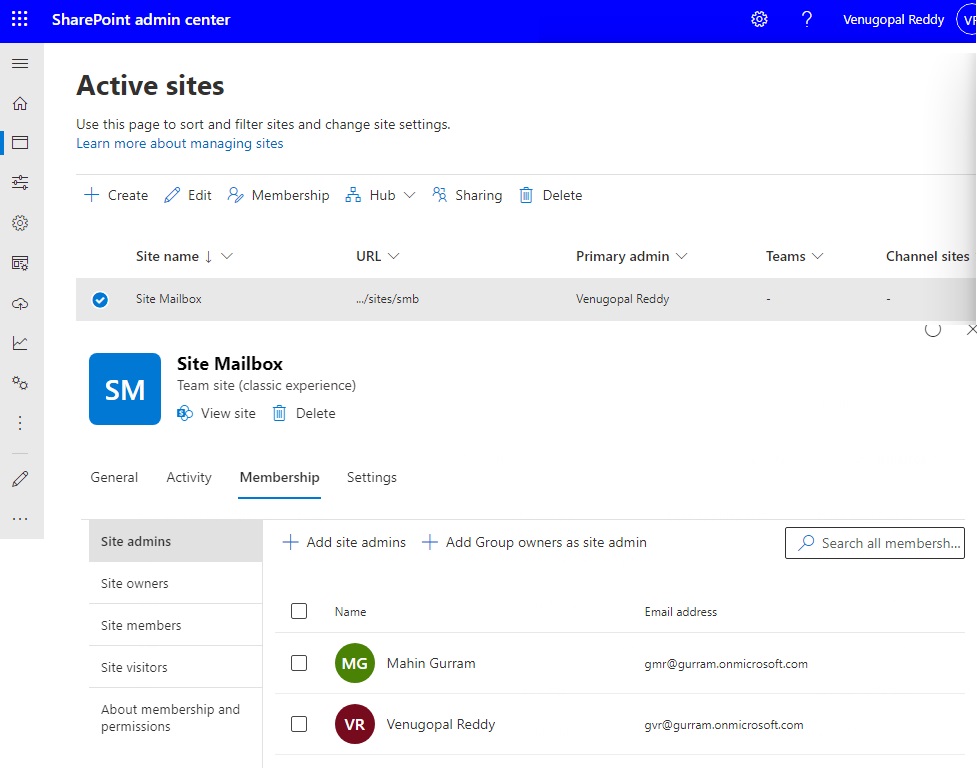
With the new features in SharePoint Admin center, we lost the ability to change the Primary Admin for any Site Collection thru 'Permissions' feature. With new 'Membership' feature, we can add Site admins, Site Owners, Site Members and Site Visitors, but cannot add or update any Site admin(s) as Primary Admin.

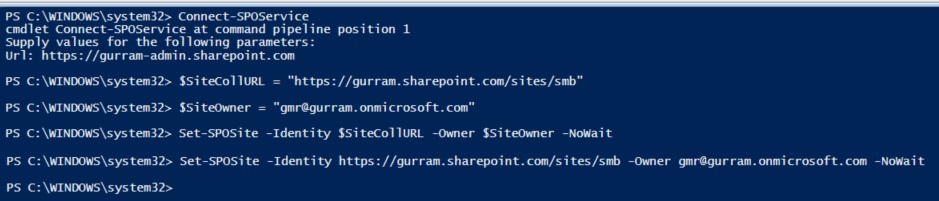
After running the above Commands, below is the PowerShell Screen.

The required Site Collection's Primary Admin was updated.
Tuesday, July 5, 2022
Change default color in Calendar without using Overlay of Calendars
Usually, we have Theme colors changing the entire theme of the site including document libraries, lists and Calendars. Here we have an option to add a little CSS script to change the colors of the default Calendar without adding new Views and using Overlay of Calendars.

The default color of the Calendar.
Go to Calendar page > Click on Wheel icon > Edit Page > Add Web Part > Media and Content > Content Editor > Add
SharePoint Online: “Delete this Document Library” is missing!
Install-Module PnP.PowerShell
Once the PnP PowerShell Module is installed successfully, we need to run the below command to register Azure AD Application and Grant Access to the Office 365 tenant by Accepting the Consent on behalf of your organization.
#Parameters$SiteURL = "https://gurram.sharepoint.com/sites/pro"$ListName = "FormServerTemplates"#Connect to PnP OnlineConnect-PnPOnline -Url $SiteURL -Interactive#Get the List$List = Get-PnPList -Identity $ListName #Enable Delete option for the list$List.AllowDeletion = $True$List.Update()Invoke-PnPQuery
Wednesday, February 9, 2022
Enable/Disable Multi-factor authentication (MFA) for selected users in M365/O365
Multi-factor authentication (MFA) provides an additional level of security for sign-ins, which uses both a password (which should be strong) and an additional verification method like smart phone or biometric attribute.
The additional verification method is not employed until after the user's password has been verified. With MFA, even if a strong user password is compromised, the attacker does not have your smart phone or your fingerprint to complete the sign-in.
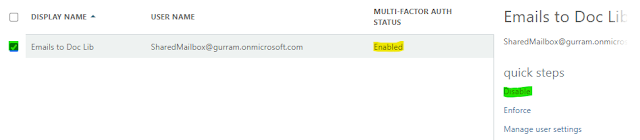
In few cases we need to disable MFA, for Service accounts and Shared Mailbox accounts, used/managed by a group.
Below are steps to enable/disable MFA for selected users.
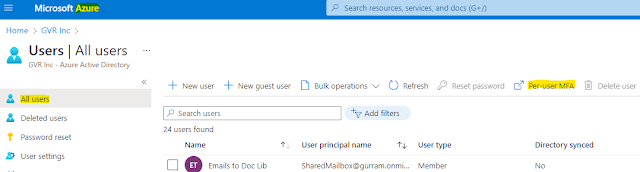
Go to M365 admin center > Users > Active Users (using the below link)
https://admin.microsoft.com/Adminportal/Home#/users
It will land in a different page routing to the below link.
https://account.activedirectory.windowsazure.com/UserManagement/MultifactorVerification.aspx?BrandContextID=O365
Tuesday, February 8, 2022
Save Email attachments to SharePoint Online Library
Below are the steps to be followed.
Step 1: Create a Shared Mailbox [Note: Shared Mailboxes don’t require licenses assigned]
Monday, August 16, 2021
New Guest user - Create user vs Invite user
- Selected 'Let me create the password' to follow our organizational password standards.
- You can select Groups, if you already know.
- You can also Select Roles, default is User. (if needed. For Ex: When working with External Security Admin, provide Security Reader role)
- Selecting Usage Location might help with Geolocation Conditional access policies in place.
- Job Info is optional, but will help to filter, incase multiple users from same company.
- Manager is also optional. But selecting might help to identify the related Internal User/Requestor.(Incase of our Company vendors/customers, we select the person who requested to create this Guest user.)
- You can select Groups, if you already know.
- You can also Select Roles, default is User. (if needed. For Ex: When working with External Security Admin, provide Security Reader role)
- Selecting Usage Location might help with Geolocation Conditional access policies in place.
- Job Info is optional, but will help to filter, incase multiple users from same company.
- Manager is also optional. But selecting might help to identify the related Internal User/Requestor.(Incase of our Company vendors/customers, we select the person who requested to create this Guest user.)