In Office 365, you can add your own custom tiles to the app launcher that point to SharePoint sites, external sites, legacy apps, and more. The custom tile appears under the app launcher's All apps, but you can pin it to the Home apps and instruct your users to do the same. This makes it easy to find the relevant sites, apps, and resources to do your job.
In the below example, a custom tile called "CRM" is used to access an organization's CRM site.
Add a custom tile to the app launcher In the Office 365 admin center, search for tiles or use the left navigation pane by choosing Settings > Organization profile > Add custom tiles for your organization. Click Edit
NOTE: If you don't see the Custom tiles link, verify you have an Exchange Online mailbox assigned to you and you've successfully signed into your mailbox. Both are required for this feature.
Choose Add a custom tile.
Enter a Tile name for the new tile. The name will appear in the tile.
Enter a URL for the tile. This is the location where you want your users to go when they click the tile on the app launcher. Use HTTPS in the URL.
Enter a Description for the tile. You see this when you select the tile on the My apps page and choose App details.
Enter an Image URL for the tile. The image appears on the My apps page and app launcher. TIP: The image should be 60x60 pixels and be available to everyone in your organization without requiring authentication.
Choose Save to create the custom tile.
Your custom tile now appears in the app launcher on the All tab for you and your users.
Note: If you don't see the custom tile created in the previous steps, make sure you have an Exchange Online mailbox assigned to you and you've signed into your mailbox at least once. These steps are required for custom tiles in Office 365.
Edit or delete a custom tile In the Office 365 admin center, search for tiles or use the left navigation pane by choosing Settings > Organization profile > Add custom tiles for your organization and click
Select the Title name and click Edit title Update the Tile name, URL, Description, or Image URL for the custom tile.
Click Update > Close. To delete a custom tile, from the Custom tiles window, select the tile, click Remove tile and then click Delete.
When you add a modern page to a site, you add and customize web parts, which are the building blocks of your page. You can connect some web parts to each other to create an interactive and dynamic experience for your page viewers. For example, you can connect a Document library web part to a File viewer web part. When a user clicks a file name in the Document library list, the File viewer shows the contents of that specific file. Or, connect a List web part or Document library web part to an Embed web part, and add custom code for a variety of dynamic experiences. Go to Site Contents >> New >> Page
Enter Page Title, click on + icon (as shown below).
First select a Document Library web part.
next add the File Viewer web part.
Note: If you're adding the File viewer web part for the first time, the Recent documents pane will open. Click Cancel on the bottom right of this pane. Click Edit web part button on the left side of the File viewer web part.
Click the ellipses (...) at the top right of the property pane, and then click Connect to source button.
Under Connect to source, select the document library you want to use from the drop down list. Click the X at the top of the pane to close it.
Click Save as draft at the top of the page. Test your connection by selecting a document from the Document library you chose. You should see the document displayed in the File viewer web part. When you're ready for your audience to see the page, click Publish at the top right of the page.
You should be able to preview the selected Document as shown below.
MySite feature was introduced with MOSS 2007, available with CALs. This was continued with all SharePoint versions including SharePoint Online. In SP 2013, 'Configure hybrid OneDrive and Sites features' in introduced. Going forward these two features (MySite & OneDrive for Business) will be merged and pushed over to OneDrive admin center.
Both SharePoint admin center and OneDrive admin center will be available for SharePoint Administrator, where still many features are clubbed.
URL evolution http://sp2007.com:81/personal/vrgurram/default.aspx http://sp2010.com/my/personal/vrgurram/default.aspx http://sp2013.com/my/personal/vrgurram/Documents/Forms/All.aspx https://tenant-my.sharepoint.com/personal/gmr_tenant_com/Documents/Forms/All.aspx Few things we can do with OneDrive for Business We can go to Site Settings page of OneDrive for Business by adding (_layouts/15/settings.aspx) as shown below. https://tenant-my.sharepoint.com/personal/gmr_tenant_com/_layouts/15/settings.aspx You can enable Site Collection Features, Site Features, Audit Settings and many other settings like we do for regular SharePoint Site. Click on Apps will take you to Site Contents page.
Or you can use (_layouts/15/viewlsts.aspx?view=14) to add at the end of the URL and navigate to Site Contents page as shown below.
https://tenant-my.sharepoint.com/personal/gmr_tenant_com/_layouts/15/viewlsts.aspx?view=14 Like in regular SharePoint Site, you can create new Lists, Document Libraries, Subsites, add Apps. But, only Documents List will be recognized as OneDrive for Business and will sync with your computer/phone. The Key Options in OneDrive for Business are given below.
Generic URL - https://tenant-my.sharepoint.com/personal/gmr_tenant_com/ (Note: Add the above generic URL in front of the below links) Recent - _layouts/15/RecentDocuments.aspx Shared with me - Documents/Forms/SharedWithMe.aspx Followed - Social/FollowedContent.aspx Recycle Bin - _layouts/15/AdminRecycleBin.aspx?mysite=1
New Experience - https://tenant-my.sharepoint.com/personal/gmr_tenant_com/_layouts/15/onedrive.aspx Classic Experience - https://tenant-my.sharepoint.com/personal/gmr_tenant_com/Documents/Forms/All.aspx With New Experience, we can also Create Flow in OneDrive for Business.
In this post, we are going to create a List Library and add it in Teams as tab. Also create a flow to send email notification when new item is created in the List Library thru ShaPoint Online. Note: We can create Flow in OneDrive and SharePoint Online. From April 2019, MSFT enabled Flow in Teams also. Microsoft Teams (Teams or MS Teams) is the popular and most used App among the O/M365 suite. Microsoft is adding more new features to Teams. The back-end for Microsoft Teams is SharePoint Online. Whenever new Team is created, one new Site Collection gets created with Team Site template.
We can view these sites in SharePoint admin center (as shown below).
Go to Teams >> under any Channel >> Files tab. You can see 'Open in SharePoint'. clicking on it will open the concerned Team as SharePoint site (as shown below).
Created a new List named 'Teams List' (The same way we do in SharePoint). Also created 3 basic fields and 3 sample items (as shown below).
Click on Add a tab option
You will see all the Apps allowed by your tenant. Select 'SharePoint'
Click on Lists tab, select the 'Teams List', click Save. 'Post to the channel about this tab' check box is optional. Checking this box will post about in the Conversations tab.
Teams List tab was added to the General channel in the MyFamily Team.
Click on the + New to add items to the List. Click on 'Open in SharePoint' to open this List in SharePoint mode.
Note: Microsoft Flow button is not available in the classic experience.
If the default behavior is set to the classic experience then you will not see the Flow button in the command bar of your list or library. If the new experience is available you can enable it for your list or library by going to List Settings, and then clicking on Advanced Settings. To learn more, see Switch the default experience for lists or document libraries from new or classic. Now we are going to create a flow to send basic notification when new list items was added/created. Go to the Teams List Library thru 'Open in SharePoint'. On the menu bar, Click on Flow >> 'Create a flow' (As shown below).
You will see a window on the right side with existing flow templates. Click on Show more to view more. Click on 'Send a customized email when a new SharePoint list item is added'.
This will open a new page with Flow app. Click Create Flow button at the bottom of the page.
Click on Edit Description and add your own Description. Click Save.
Click on Edit
Use the ... at the end of the Workflow item to go to Settings (as shown below). Update the existing steps and also add using + New Step.
Updated few fields as per requirement.
You can see these options in the top-right corner of the Flow page (as shown below). Once completed, Save it. Click on Flow Checker to view any Errors or messages. Click on Test to perform a test and create a new item in the Teams List.
You will see a message, Your flow ran successfully.
An email is sent to the receiver's Inbox as shown below.
Note: If your admin has not configured your site to allow users to buy apps, you may still be able to request an app. The person in your organization who manages the App Catalog site can approve or deny requests for purchasing apps.
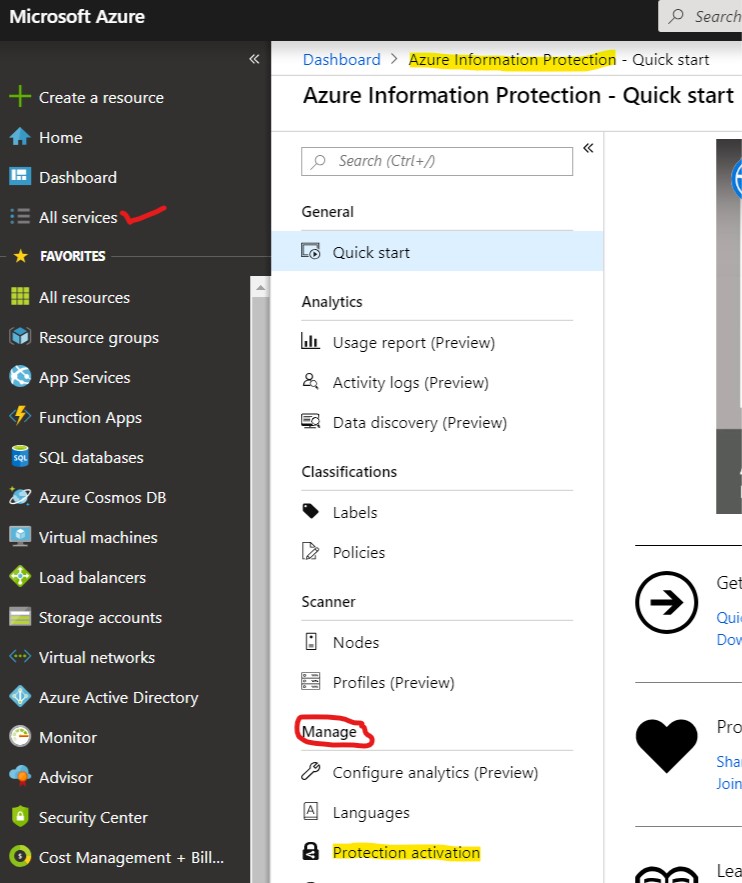
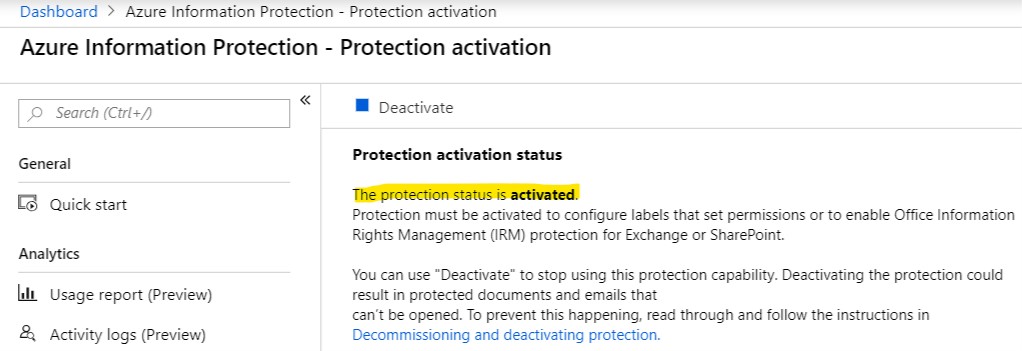
Step 1: Activate the Azure Rights Management Service (Azure RMS). You must use Office 365 global administrator privileges to enable the Azure Rights Management Service. Open a new browser window and sign in to the Azure portal. On the left menu, click All services and start typing Information in the Filter box. Select Azure Information Protection. If you haven't accessed the Azure Information Protection blade before, see the one-time additional steps to add this blade to the portal.
Sign in to Office 365 as a global admin or SharePoint admin.
Select the app launcher icon in the upper-left and choose Admin to open the Office 365 admin center. (If you don't see the Admin tile, you don't have Office 365 administrator permissions in your organization.)
In the left pane, choose Admin centers > SharePoint.
In the left pane, choose settings.
In the Information Rights Management (IRM) section, choose Use the IRM service specified in your configuration, and then Click on Refresh IRM Settings.
6. Click OK at the botton of the settings page.
After you refresh IRM settings, may take up to an hour to appear in Library Settings and List Settings. Users in your organization can begin using IRM in their SharePoint lists and document libraries. _______________________________________________________________
Step 3:Apply Information Rights Management (IRM) to a list or library
Information Rights Management (IRM) is used to help control and protect files that are downloaded from lists or libraries. To apply IRM to a list or library, you must have administrator permissions for that list or library.
Note: If you are using SharePoint Online, your users might experience timeouts when downloading larger IRM-protected files. If this happens, then apply IRM protection by using your Office programs, and store larger files in a SharePoint library that does not use IRM.
Go to the list or library for which you want to configure IRM.
On the ribbon, click the Library tab, and then click Library Settings. (If you are working in a list, click the List tab, and then click List Settings).
Under Permissions and Management, click Information Rights Management. Note: The Information Rights Management link does not appear for picture libraries.
On the Information Rights Management Settings page, select the Restrict permission to documents in this library on downloadcheck box to apply restricted permission to documents that are downloaded from this list or library.
In the Create a permission policy title box, type a descriptive name for the policy that you can use later to differentiate this policy from other policies. For example, you can type Company Confidential if you are applying restricted permission to a list or library that will contain company documents that are confidential.
In the Add a permission policy description box, type a description that will appear to people who use this list or library that explains how they should handle the documents in this list or library. For example, you can type Discuss the contents of this document only with other employees if you want to restrict access to the information in these documents to internal employees.
To apply additional restrictions to the documents in this list or library, click Show Options, and do any of the following:
To do this:
Do this:
Allow people to print documents from this list or library
Select the Allow viewers to print check box.
Allow people with at least the View Items permission to run embedded code or macros on a document.
Select the Allow viewers to run script and screen reader to function on downloaded documents check box. If you select this option, users could run code to extract the contents of a document.
Require that people verify their credentials at specific intervals. Select this option if you want to restrict access to content to a specified period of time. If you select this option, people's issuance licenses to access the content will expire after the specified number of days, and people will be required to return to the server to verify their credentials and download a new copy.
Select the Users must verify their credentials using this interval (days)check box, and then specify the number of days for which you want the document to be viewable.
Prevent people from uploading documents that do not support IRM to this list or library. If you select this option, people will not be able to upload any of the following file types: File types that do not have corresponding IRM protectors installed on all of the front-end Web servers. File types that SharePoint Server 2010 cannot decrypt. File types that are IRM protected in another program
Select the Do not allow users to upload documents that do not support IRMcheck box.
Remove restricted permissions from this list or library on a specific date.
Select the Stop restricting access to the library at check box, and then select the date that you want.
Control the interval that credentials are cached for the program that is licensed to open the document.
In the Set group protection and credentials interval, enter theinterval for caching credentials in number of days.
Allow group protection so that users can share with members of the same group.
Select Allow group protection, and enter the group's name for sharing.
After you finish selecting the options you want, click OK. _______________________________________________________________ IRM helps to protect restricted content in the following ways:
Helps to prevent an authorized viewer from copying, modifying, printing, faxing, or copying and pasting the content for unauthorized use.
Helps to prevent an authorized viewer from copying the content by using the Print Screen feature in Microsoft Windows.
Helps to prevent an unauthorized viewer from viewing the content if it is sent in e-mail after it is downloaded from the server.
Restricts access to content to a specified period of time, after which users must confirm their credentials and download the content again.
Helps to enforce corporate policies that govern the use and dissemination of content within your organization.
IRM cannot protect restricted content from the following:
Erasure, theft, capture, or transmission by malicious programs such as Trojan horses, keystroke loggers, and certain types of spyware.
Loss or corruption because of the actions of computer viruses.
Manual copying or retyping of content from the display on a screen.
Digital or film photography of content that is displayed on a screen.
Copying through the use of third-party screen-capture programs.
Copying of content metadata (column values) through the use of third-party screen-capture programs or copy-and-paste action.
IRM protection is applied to files at the list or library level. When IRM is enabled for a library, rights management applies to all of the files in that library. When IRM is enabled for a list, rights management applies only to files that are attached to list items, not the actual list items.
When people download files in an IRM-enabled list or library, the files are encrypted so that only authorized people can view them. Each rights-managed file also contains an issuance license that imposes restrictions on the people who view the file. Typical restrictions include making a file read-only, disabling the copying of text, preventing people from saving a local copy, and preventing people from printing the file. Client programs that can read IRM-supported file types use the issuance license within the rights-managed file to enforce these restrictions. This is how a rights-managed file retains its protection even after it is downloaded from the server.
The types of restrictions that are applied to a file when it is downloaded from a list or library are based on the individual user's permissions on the site that contains the file. The following table explains how the permissions on sites correspond to IRM permissions.
Permissions
IRM Permissions
Manage Permissions, Manage Web Site
Full control (as defined by the client program): This permission generally allows a user to read, edit, copy, save, and modify permissions of rights-managed content.
Edit Items, Manage Lists, Add and Customize Pages
Edit, Copy, and Save: A user can print a file only if the Allow users to print documents check box is selected on the Information Rights Management Settings page for the list or library.
View Items
Read: A user can read the document, but cannot copy or modify its content. A user can print only if the Allow users to print documents check box is selected on the Information Rights Management Settings page for the list or library.
Other
No other permissions correspond directly to IRM permissions.
When site owners enable IRM for a list or library, they can protect any supported file types in that list or library. When IRM is enabled for a library, rights management applies to all of the files in that library. When you enable IRM for a list, rights management applies only to files that are attached to list items, not the actual list items.
When people download files in an IRM-enabled list or library, the files are encrypted so that only authorized people can view them. Each rights-managed file also contains an issuance license that imposes restrictions on the people who view the file. Typical restrictions include making a file read-only, disabling the copying of text, preventing people from saving a local copy, and preventing people from printing the file. Client programs that can read IRM-supported file types use the issuance license within the rights-managed file to enforce these restrictions. This is how a rights-managed file retains its protection even after it is downloaded.
You cannot create or edit documents in an IRM-enabled library using Office Online. Instead, one person at a time can download and edit IRM-encrypted files. Use check-in and check-out to manage co-authoring , or authoring across multiple users.
When you download a PDF file from an IRM-protected library, Office 365 creates a protected PDF file. The file's extension won't change, but the file is protected. To view this file you'll need the Azure Information Protection viewer, the full Azure Information Protection client, or another application that supports viewing protected PDF files.
SharePoint Online supports encryption of the following file types:
PDF
The 97-2003 file formats for the following Microsoft Office programs: Word, Excel, and PowerPoint
The Office Open XML formats for the following Microsoft Office programs: Word, Excel, and PowerPoint
The XML Paper Specification (XPS) format
Document Library Settings >> IRM Settings in OneDrive.
Document Library Settings >>IRM Settings in Teams.

 Add a custom tile.