SharePoint (2003 thru Online): SharePoint 2013
Showing posts with label SharePoint 2013. Show all posts

Monday, September 9, 2019

Cumulative Updates in your SharePoint Farm


For SharePoint Online, view here

Farm Build Version via SharePoint Management Shell.
Open SharePoint Management Shell as administrator.

Run the Cmdlet’  Get-SPFarm.BuildVersion

SharePoint Farm Build Version via Central Administration.
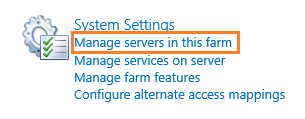
Go to Central Administration > System Settings > Manage Servers in this farm.
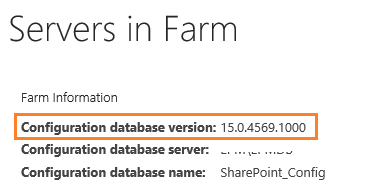
Under Farm Information > Check the Configuration database version = farm patch level of the farm (Build Farm Version).
Get the Products and Patches build numbers that already installed on the farm.
Go to Upgrade and Migration > Check product and patch installation status.

You could check all the installed products in the whole farm or on a specific server.
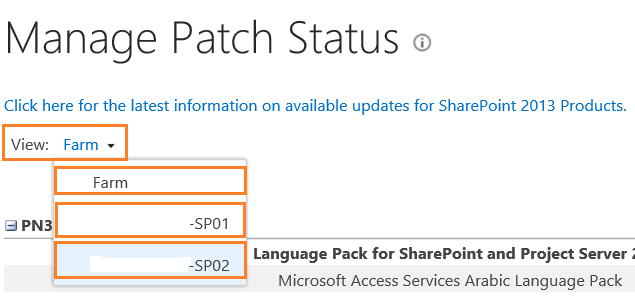
Check the install status and version columns for all installed Products/Patches.


Get the Database build number on the farm.
Central Administration > Upgrade and Migration > Review Database Status.
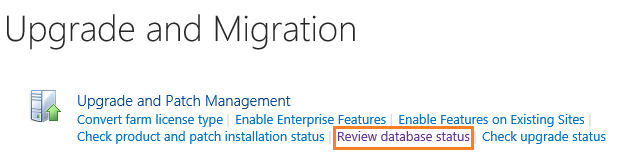
Manage Database Upgrade Status > Click on Content Database name.

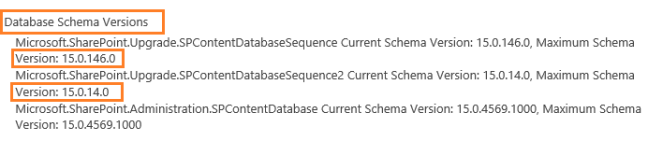
Get the database Schema Versions.
Get the Farm Build Version via SQL Server.
Open SQL Server Management Studio.
Open the Content Database > Versions Table. 

SELECT TOP 10 [VersionId]
      ,[Version]
      ,[Id]
      ,[TimeStamp]
FROM [SharePoint_Config].[dbo].[Versions]


The Farm build number is the corresponding value of versionID start with ‘0000000-000’ that is ‘15.0.4569.1000‘.
The version table also shows the Database Sequence build number that is ‘15.0.14.0‘ & ‘15.0.146.0‘.

After you get the farm build version, you’ll be able to get its corresponding release.by browsing the below links based on your SharePoint version.
For SharePoint 2010 Build Version Number.
SharePoint 2010 Build Numbers (Cube Sheet).
SharePoint Server 2010 Build Numbers
For SharePoint 2013 Build Version Numbers.
SharePoint 2013 Build Numbers (Cube Sheet).
SharePoint Server 2013 Build Numbers
For SharePoint 2010/2013/2016 Build Version Numbers.
Build Numbers Blog.

Then search for the corresponding release with the farm build number as shown below:

In my case, the related release of my farm build number ‘15.0.4569.1000’ was SharePoint 2013 Service Pack 1.

Thursday, June 13, 2019

Powershell for locked/blocked Sites/Site-Collections

Our project is to migrate a SharePoint 2013 Site Collection from ABC domain to O365 with XYZ Domain.

Once decided, the Site Collection was made Read Only, backup of the DB was taken on ABC Domain. Restored the DB on another Site Collection in XYZ domain. While we are trying to access the Site Collection, we got the below error.


Additions to this Web site have been blocked. 
Please contact the administrators to resolve this problem.


1. Check the following in sites Quotas and Locks
·         Go to Central Administration -> Application Management -> Configure Quotas and Locks
·         Set the Site Lock Information to "Not Lock" (it had been set to " Read-only (blocks additions, updates, and deletions)”)


Once unlocked, was able to access and migrate the site successfully.

2. Use the below Powershell command to unlock the Site Collection.

Set-SPSite http://devsp13:92/test/ -LockState Unlock 


Monday, May 20, 2019

SP 2013 - App Catalog Site

App Catalog Site setup is task for SharePoint admins. Go to Central Administration >> Apps >> Manage App Catalog


For the first time, you need to select 'Create a new app catalog site', click OK.


Enter in the Site Title, URL, Primary Site Collection Admin and Click OK.


App Catalog Site got created as shown below. Click on Site URL.

App Catalog Site with options (as shown below).


Configure Store Settings

With App Purchases 'No' (recommended), we can stop end users ability to get apps. SharePoint admins only can add the recommended apps. With 'Apps for Office from the Store' option selected Yes, end users can view all the apps installed by SharePoint admins.


Purchase Apps.


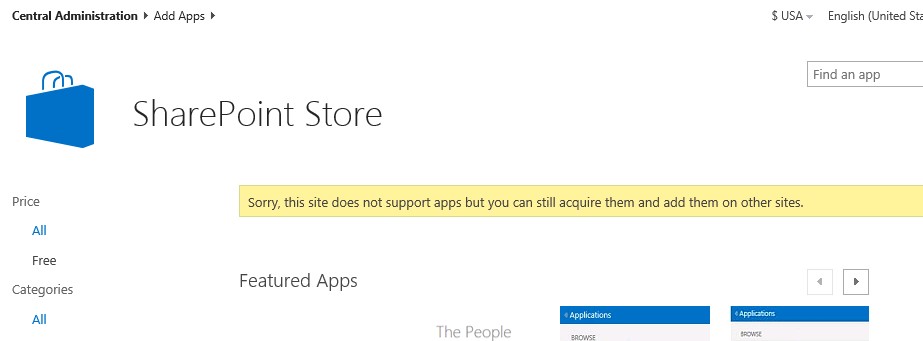
Go to Central Administration >> Apps >> Purchase Apps. This will take you to the SharePoint Store page, where you can see all Featured Apps (All & Free).


Error: Sorry apps, are turned off. If you know who runs the server, tell them to enable apps.
Please follow the below steps to get rid of the above error message.

1. Go to Central Administration >> System Settings >> Services on Server. Make sure the service 
     Microsoft SharePoint Foundation Subscription Settings Service is Started

2. Run the below PowerShell commands to Create Microsoft SharePoint Foundation Subscription Settings Service Application

$sa = New-SPSubscriptionSettingsServiceApplication -ApplicationPool 'SharePoint Web Services Default' -Name 'Subscriptions Settings Service Application' -DatabaseName 'Subscription'

New-SPSubscriptionSettingsServiceApplicationProxy -ServiceApplication $sa


3. Go to Central Administration >> Application Management >> Manage service applications. Make sure  Microsoft SharePoint Foundation Subscription Settings Service Application is created and Started. 


4. Configure App URLs

Go to Central Administration >> Apps >> Configure App URLs. Enter App domain and App pefix.
Mak esure your Sys Admin creates DNS entry for spdev2013.com and subdomain for apps.


No worries, when you see the below message.  This is because Central Admin site does not support apps. Go to any other SharePoint Site Collection or site, you will be able to add the apps.


Wednesday, June 6, 2018

Migration from SharePoint 2013 to SharePoint Online

Permissions, Assessment and Reports are the common prerequisites for any Migration. In my case, we used Share-gate Migration Tool and completed the migration from SharePoint 20103 to SharePoint Online successfully.


Recommended Permissions
Here are the recommended SharePoint permissions to use with the following features:

Copy Structure: Site Collection Administrator rights are recommended both on the source and the destination site collections in order to take advantage of all the copy options. If you are copying site collections from the web application, Farm Administrator rights are recommended both on the source and the destination Farm. For migration of managed metadata and objects where copying this data is necessary, term store administrator access is also needed.

Copy Content: Full Control permissions on both the source and destination Sites (if applicable) as well as on the selected list or library are recommended to be able to take advantage of all the copy options. Term store administrator permission is necessary for the proper migration of all managed metadata.

Management features: In order to fully exploit all of the Management module's capabilities the following permission sets are also required: Farm administrator, site collection administrator as well as full control on the web application.

Note: For OneDrive for Business operations, it is important to note that the user being used when connecting to either the source or destination server must also be set up as an administrator for every user's MySite.

Copy User Alerts: In order to copy User Alerts the permission "Manage User Alerts" must be granted to the user doing the migration at the source and destination sites. The server extension must be installed on the source and destination sites.

Remove read-only Site Collection Lock: The Read-only lock should be removed on your source Site Collection before running a migration action. Some SharePoint services do not respond correctly when the Site Collection is on read-only mode (even if they are only used to read information), and the requests will not be processed as intended.

Not removing the read-only lock will mostly affect the structural parts of your environment, like Web Parts and Site settings, but the behavior is unpredictable and is may affect more overall.


Assessment
Microsoft is providing the SharePoint Assessment and Identity Management tool (free of cost) for SharePoint 2013 servers to assist in migration to SharePoint online.

Find more details in the below link.
https://docs.microsoft.com/en-us/sharepointmigration/migrate-to-sharepoint-online
Even if you're technically migrating from one version of SharePoint to another, they aren’t exactly the same. First, you have to take into consideration that there are different plans you can subscribe to and each with a set of features available. In my case, we were going with Office 365 E3 plan which includes SharePoint Online.

I did research and check to make sure the features we were using in SP 2013 are still available in our new Office 365 E3 plan.

Microsoft has a very detailed article which shows every single feature in a complete Edition Comparison Chart of SharePoint 2013, both On-Premises, Online and Office 365.

Please go thru SharePoint Online Limits as per Microsoft (below link).
https://technet.microsoft.com/en-us/library/mt842345.aspx

Share-gate Migration Tool
In my case, we were using Share-gate Migration Tool to migrate from SharePoint 2013 to SharePoint Online. It has many built-in reports and we can also create custom reports. We have Inventory option to generate inventory report.

We need to run the the below given reports and make sure everything is cleared.

  • Orphaned User Report (we need to go thru and clean Orphaned users) 
  • Checked Out Documents Report (We need to check in all the Checked out Documents before starting Migration) 
  • Unused Site Report (discuss with Owners and delete unwanted sites) 
  • Large Document Report (keep an eye on these files after migration too) 
  • Limited Access Report (run a report and clean them)


There is a new feature in Share-gate called Insights, where you can run it on a specific farm and get some info about Missing Administrators and missing Site Owners.


Once all the above prerequisites are completed, We started the migration of Content from SP 2013 to SharePoint Online using the steps given in below link.

https://support.share-gate.com/hc/en-us/articles/115000640388-Walkthrough-Copy-Content

Monday, November 6, 2017

Check Out & Open message while opening PDF


To avoid getting this annoying message while you click on a PDF file in SharePoint, please try the below step.


Please disable "Adobe Acrobat Sharepoint OpenDocuments Component" Add-on in the Internet Explorer.


When you click on the PDF file, the PDF should open in the Browser. Please make sure the below add-on is enabled.


Wednesday, November 2, 2016

PDF Files Issue in SharePoint 2010

In SharePoint 2010 document libraries, the PDF’s that have been uploaded do not show the correct icon and only give you the option to save instead of opening them.


The below PowerShell script downloads a icon GIF image from Adobe named pdficon_small.gif, places it in the images folder under the 14 hive, associates it in the DOCICON.XML file, sets Browser File Handling to Permissive, and then runs IISReset.
                                           The pdf icon was downloaded to the IMAGES folder.

             The PDF Key was added to the DocIcon.XML with this PDF GIF image icon file.

Browser File Handling to "Permissive" will enable the PDF’s to be opened instead of only saved. 

PDF docs now have the correct icon and are allowed to be opened.

Microsoft KB Article related to PDF Issue in SharePoint.
________________________________________________________________________

We can also enable opening PDF files is by adding the pdf extension to the allowed MIME types of the web application.

VIEW
$webApp = Get-SPWebApplication "http://sp2010dev/"
$webApp.AllowedInlineDownloadedMimeTypes

ADD
$webApp = Get-SPWebApplication "http://sp2010dev/"
$webApp.AllowedInlineDownloadedMimeTypes.Add("application/pdf")
$webApp.Update()

REMOVE
$webApp = Get-SPWebApplication "http://sp2010dev/"
$webApp.AllowedInlineDownloadedMimeTypes.Remove("application/pdf")
$webApp.Update()

Tuesday, May 3, 2016

Outgoing Email Settings

There are multiple Places to update Outgoing Email Settings on SharePoint Server.

1. System Settings >> Configure outgoing e-mail settings.


2. Application Management >> Manage Web Applications, select the Web Applications.
    Drop down - General Settings >> Outgoing E-mail

Make sure the Settings were same across all the Web Applications.


You can also specify different From address and Reply-to address based on the purpose of the Web Application.

Also you need to work with your Network Admin to make sure the Static routes are configured correctly on the SharePoint Front End/App Server.

Wednesday, March 9, 2016

Embedding Video On Your SharePoint Site


Have you ever wanted to simply add some video to a landing page in SharePoint? There are a lot of hefty applications out there that do this quite well, utilizing Silverlight and Ajax, but, did you know that you can do this with out of the box SharePoint? It's actually quite simple. Here's how!
  • Upload a media file to a standard SharePoint Document Library
  • Navigate to the site where you want to embed the video
  • Edit the page and select Add a Web Part
  • Under Miscellaneous, insert a Content Editor Web Part
  • From the Web select Open the Tool Pane
  • From Tool Pane, select Source Editor

Copy in the following code (replace http://link to video here with the actual link to the video in the library):

<div align="center">
<embed src="http://link to video here"
autoplay="true"
loop="false"
width="200"
height="200"
</embed>
</div>

Click Apply. Its just a matter of formatting after that!

Thursday, December 10, 2015

SharePoint Servers (FARM) Reboot Hierarchy

We would recommend this order as it will minimize the number of warnings/errors in the Windows Event Log. This is applicable to all (SharePoint 2003, 2007, 2010, 2013 & 2016).

Shutting down the SP Servers (FARM)


1. WFE Servers
2. Index and Search Servers
3. App Servers (the App server that runs Central Administration web site last)
4. SQL Servers


Turning on the SP Servers (FARM) 
[we can use the below hierarchy for re-boot also]


1. SQL Servers
2. App Servers (the App server that runs Central Administration web site first)
3. Index and Search Servers
4. WFE Servers

Friday, October 2, 2015

SharePoint 2013 Installation


Issue 1:
During Installing SharePoint 2013 Prerequisites there was an error in installing Application Server Role , Web Server (IIS) Role : Configuration error

Steps to fix (Installing .Net Framework 3.5):
  1. Insert the Windows Server 2012 installation image or DVD
  2. Open a command prompt window (run as Administrator) and run the following:
  3. Dism /online /enable-feature /featurename:NetFX3 /All /Source:D:\sources\SxS /LimitAccess
Note: D:\ is a Label for CD Drive in my case where Windows Server 2012 ISO image.

Make a copy of ServerManager.exe and rename to ServerManagerCMD.exe - leave the copy in System32 folder.

or

rename the file C:\windows\System32\ServerManager.exe with ServerManagerCMD.exe 
and low and behold - it now works