Microsoft lists is home to Create new lists and access recent and favorite lists from one location.
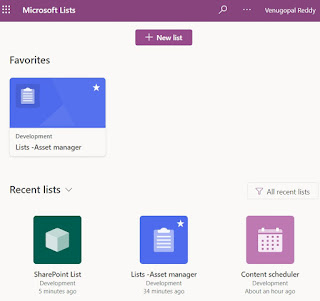
Looking at the Microsoft lists, the first question in my mind was, How are they different from SharePoint lists.
As the answer, we created all lists using existing 8 templates provided in Microsoft lists to analyze the additional features.
First of all, going thru the List settings, there is no difference between Microsoft lists and SharePoint lists.
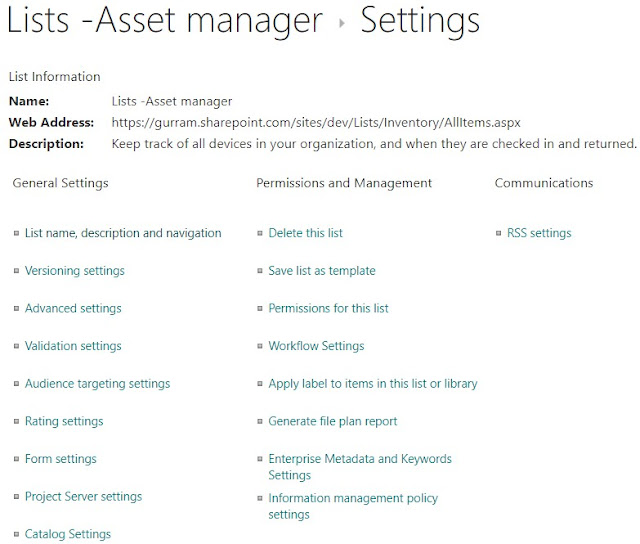
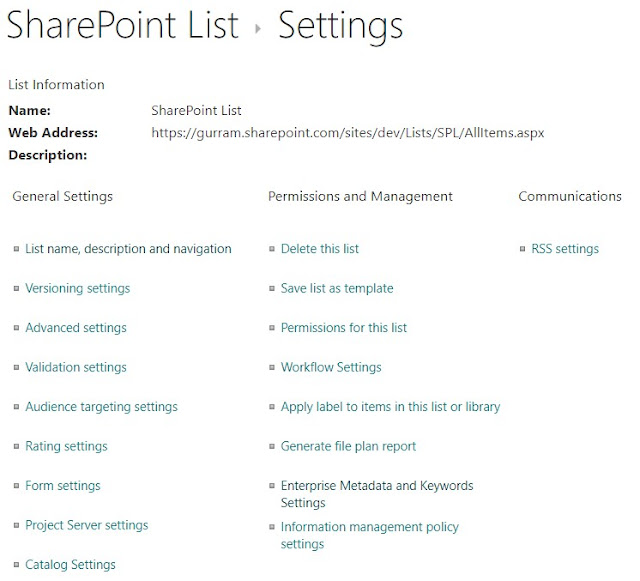
The display of the view is beautiful with adding

Looking at the Microsoft lists, the first question in my mind was, How are they different from SharePoint lists.
As the answer, we created all lists using existing 8 templates provided in Microsoft lists to analyze the additional features.


The display of the view is beautiful with adding
?env=WebViewList to the end of the list's URL. You can also add this to end of your SharePoint lists.

Under Views, we see additional views for lists created from Templates. Grid view and Gallery view the new options.
Views in Content scheduler (Template)
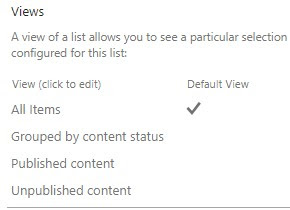
Views in Employee onboarding (Template)
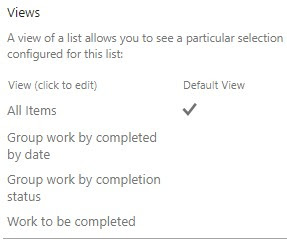
Views in Event itinerary (Template)
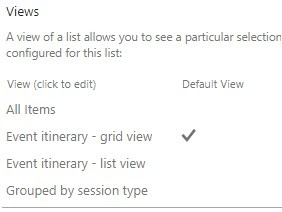
Views in Issue tracker (Template)
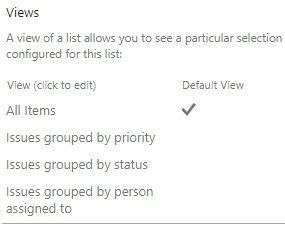
Views in Recruitment tracker (Template)
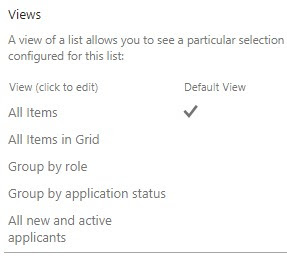
Views in Travel requests (Template)
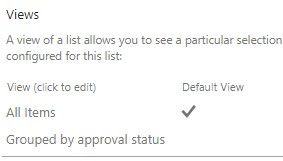
Views in Work progress tracker (Template)
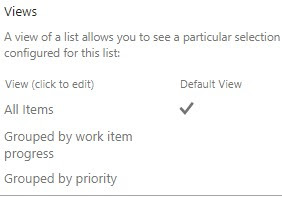
Views in Asset manager (Template)
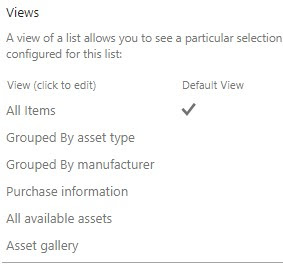
One more wonderful features is, you can add Lists app in Microsoft Teams and create lists.
Similar to SharePoint lists, we can write conditional formatting, rules, column width adjustments.
Hope Microsoft will add more features in near future.

Under Views, we see additional views for lists created from Templates. Grid view and Gallery view the new options.
Views in Content scheduler (Template)

Views in Employee onboarding (Template)

Views in Event itinerary (Template)

Views in Issue tracker (Template)

Views in Recruitment tracker (Template)

Views in Travel requests (Template)

Views in Work progress tracker (Template)

Views in Asset manager (Template)

One more wonderful features is, you can add Lists app in Microsoft Teams and create lists.
Similar to SharePoint lists, we can write conditional formatting, rules, column width adjustments.
Hope Microsoft will add more features in near future.
