SharePoint (2003 thru Online): Microsoft Lists
Showing posts with label Microsoft Lists. Show all posts

Tuesday, September 15, 2020

Creating Microsoft Lists in Microsoft Teams

Earlier, we have option to link SharePoint Lists in Microsoft Teams. Now we can create Microsoft lists from the Microsoft Teams Web and Client.

Go to Microsoft Teams, Click on + (You can do this in any Channel)

Click on Lists icon.
Click on Save to finish adding Lists to the Channel.
The Lists is added as tab.
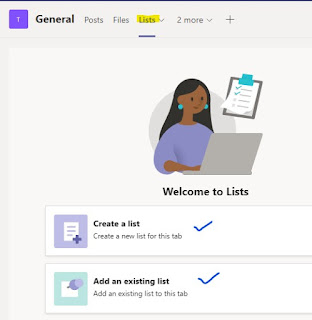
Click on Add an existing list, if you already have a list created.
Click on Create a list for new.
We see the default options - Blank list, From Excel and From existing list. The brand new options is Templates
[Microsoft is adding new templates, everytime we get updates]
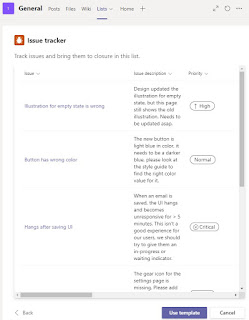
By Clicking the any of the template, we can preview the List with Demo data. We can always go Back and select different template. Click on Use template to go forward.

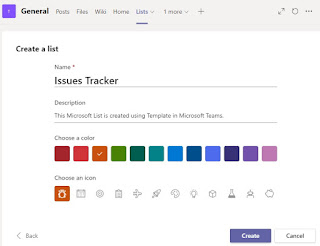
Enter Name, Description. Choose color, choose icon. Click on Create.

The Issue tracker list was created and  added as a tab in the Channel.
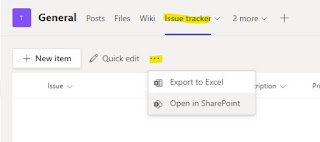
Click on New Item to create List items.

The list is saved to the Microsoft Teams Site Collection. You can view the list using Open in SharePoint.

Friday, September 4, 2020

Microsoft lists vs SharePoint lists


Microsoft lists is home to Create new lists and access recent and favorite lists from one location.


Looking at the Microsoft lists, the first question in my mind was, How are they different from SharePoint lists.


As the answer, we created all lists using existing 8 templates provided in Microsoft lists to analyze the additional features. 

First of all, going thru the List settings, there is no difference between Microsoft lists and SharePoint lists.


The display of the view is beautiful with adding 
?env=WebViewList to the end of the list's URL. You can also add this to end of your SharePoint lists.


Under Views, we see additional views for lists created from Templates. Grid view and Gallery view the new options.

Views in Content scheduler (Template)


Views in Employee onboarding (Template)


Views in Event itinerary (Template)


Views in Issue tracker (Template)


Views in Recruitment tracker (Template)


Views in Travel requests (Template)


Views in Work progress tracker (Template)


Views in Asset manager (Template)


One more wonderful features is, you can add Lists app in Microsoft Teams and create lists.

Similar to SharePoint lists, we can write conditional formatting, rules, column width adjustments.

Hope Microsoft will add more features in near future.

Thursday, September 3, 2020

Create Microsoft Lists (new feature)

Finally, Microsoft Lists got released.
Go to https://www.office.com/apps?auth=2

You will see the Lists icon among all apps.


It opens with a 4 step Intro slide taking you to page where you can create new list and also view existing lists, if any.

By looking at the URL https://gurram-my.sharepoint.com/personal/gvr_gurram_onmicrosoft_com/_layouts/15/Lists.aspx

Lists.aspx page is hosted under OneDrive.


Create Blank list and Save to My lists.

Click on + New list. (You will see the options to create a Blank list, From Excel, From existing list and also using templates). Click on Blank list.


Enter Name, Description. Choose color, choose icon.


The key required option is Save to. By default it shows My lists (By choosing My lists, the list will be saved under My lists of your OneDrive)

Do the drop down, it shows all the Microsoft teams sites and SharePoint Online site collections you have access to. For this activity, we selected My Lists. Click on Create.


The new list '2020 Contacts' was created under My lists of my OneDrive.

https://gurram-my.sharepoint.com/personal/gvr_gurram_onmicrosoft_com/Lists/2020Contacts/AllItems.aspx


Create a list from Template and Save to Development site.

Click on + New list. Click on any template below, chose Travel requests under Templates.


You can see the preview of the list with all columns defined in the template with demo data. Click on 'Use template'


Enter Name, Description. Choose color, Choose icon. Under Save to, we selected Development site. Click on Create.


My Travel requests list was created under Development site.

https://gurram.sharepoint.com/sites/dev/Lists/My%20Travel%20requests/AllItems.aspx?env=WebViewList

With this new Lists feature, you can create Microsoft List under any Microsoft Team sites or SharePoint Online Site Collections.

Comparison and Details.....
Microsoft Lists vs SharePoint Lists

Thursday, May 21, 2020

Microsoft Lists

Microsoft Lists is an evolution of SharePoint Lists.

We’ll be looking forward to trying out Microsoft Lists when it becomes available later this summer. It features deep integrations into Teams, SharePoint and other Microsoft products.


with Microsoft Lists, you can create, share, and track data and information—like issue tracking and status reporting—directly within Microsoft Teams, SharePoint, and the soon-to-be-released Lists mobile app.

Please go thru the below blog post for creating Lists.
Create Microsoft Lists